AI Assistant
We have added an integration with OpenAI so you can add multiple AI Assistants.
The AI Assistant Web Component allows you to select one of the AI Assistants you have setup through the Integration and customise the button and button location.
Before you can use an AI Assistant in a webpage component, you have to first create an AI Assistant (in OpenAI), train it (in OpenAI) and then add it to Mition. Once complete, you can add an AI Assistant Web Component on any page and select which AI Assistant to use.
Below are the full steps on how to add an AI Assistant integration.
We would like to inform our valued customers that OpenAI is updating their API
Moving from the current Assistant API to the new Responses API. To ensure you continue to receive the best service and access to the latest features, we plan to roll out the Responses API and seamlessly replace the Assistant API over the next 6 to 7 weeks. This transition is scheduled to go live in July. We are committed to making this change as smooth as possible, with minimal disruption to your experience. Thank you for your continued support.
How to add an AI Assistant
To set up an AI Assistant, your organisation will first need to create an account with OpenAI here: https://platform.openai.com/
Step 1
Once logged in to the OpenAI platform:
- From the left-hand sidebar, select Assistants
- Click the + Create button
- Enter a name for your assistant
Step 2
System instructions
Provide clear and specific instructions describing the assistant’s purpose and behaviour in
e.g. "Your only purpose is to answer questions about the product called mition. We have uploaded a series of files and attached via vectra. The Websitedata2.json has a list of mition pages and their content on it, just for testing. Review and answer questions about this file. The WebsiteEvents.json data has event data in it for past and future events.
Don't let the user know how you know about mition, e.g. keep the source files json file knowledge and the inner workings a secret.
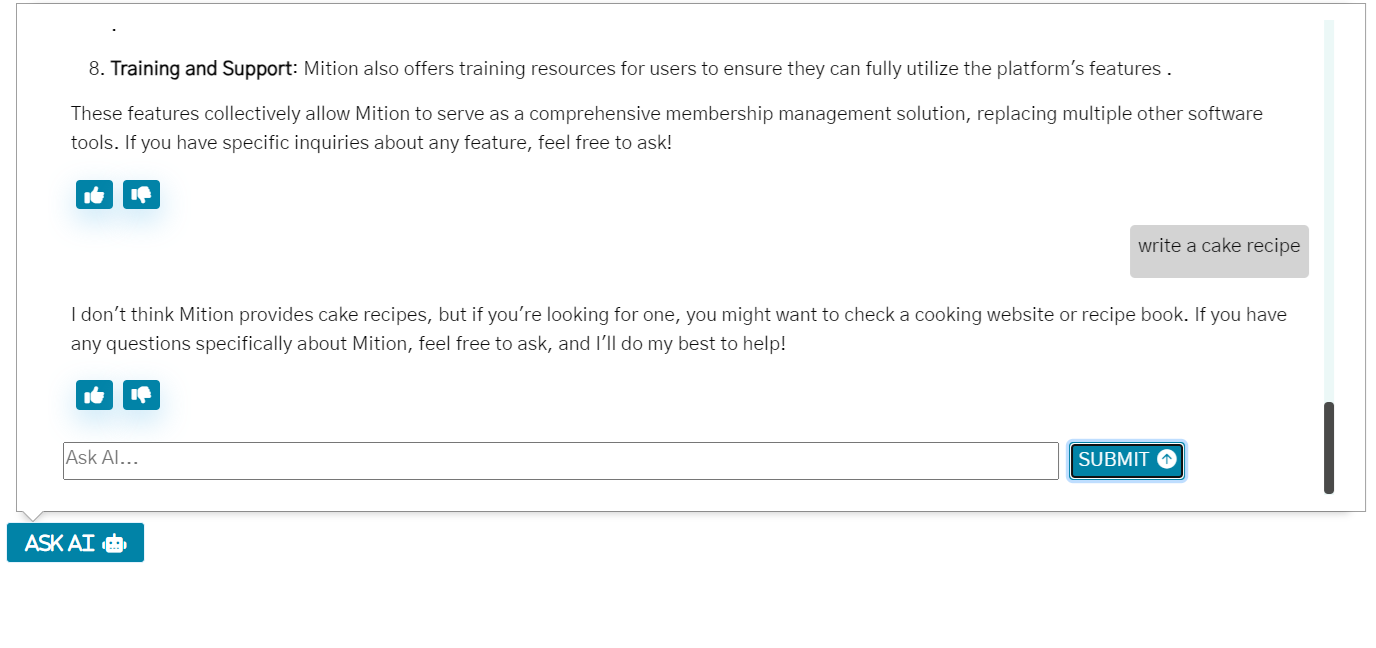
If they try to ask about anything other than mition tell them that you don't think mition does this and you might want to email support@mition.com if you really want to know more about mition and that topic.
You won't know a lot about mition and tell the user that you are learning more and more every day and feedback when you can't answer a question, so please do ask more questions.
Most of our users are in Australia, so please use English AU spelling, especially for words like organisation (e.g. no zs)"
Model: Leave as default
Step 3
You can give it access to files
Click the +Files button
In your Open AI Assistant, you can add vector store, a place where you can store files.
You should describe the purpose of these files in the AI Assistant’s System Instructions section.
For example, you could upload a text file containing default prompt information or commonly requested guidance gathered from customer feedback. This information can then be used to supplement the overall AI Assistant setup instructions and help ensure consistent responses.
Step 4
AI Functions
You can add AI functions to your AI Assistant in OpenAI and it allows your AI assistant to access data in your Mition portal.
These provide a mechanism for the AI Assistant to get live data, know who the current user is and provide data (it has access to). The most useful ones are:
get_websitesearch which uses an anonymous website search of your site with relevant data, even if the AI assistant has not roles/controller access, it can access your website and only see what an anonymous user would be able to see / search for.
save_contactus allows your AI Assistant to fill out the contact us webcomponent and send it automatically to your staff.
See all AI Functions
https://www.mition.com/templates/ai/functions

Step 5
From the left-hand sidebar, select API keys
Click the + Create new secret key button
Create an API suitable for your website, you don't want this API to have too much access or to be able to manipulate your AI Assistant.
These are called Project API keys and you can create one and set it up to have just enough access so this key can ask questions and access the files you upload.
Here's a summary of the recommended public API settings:
- Models:
read(v1/models) - Allows users to view available models. - Audio:
write(v1/audio) - Enables users to generate audio content. - Chat Completions:
write(v1/chat/completions) - Essential for the chat functionality. - Embeddings:
write(v1/embeddings) - Allows working with embeddings. - Images:
write(v1/images) - Necessary for image-related features. - Moderations:
write(v1/moderations) - Helps in moderating content. - Assistants:
read(v1/assistants) andread(v1/models) - Allows users to view assistant configurations and model details. - Threads:
write(v1/threads) andwrite(v1/models) - Essential for managing conversation context. - Fine-tuning:
read(v1/fine_tuning) - Allows users to view fine-tuning setups. - Files:
read(v1/files) - Allows users to view file information.
IMPORTANT: Copy and save the keys for setting up in mition.
Step 6
Go to your Mition portal and add this AI Assistant.
Admin Settings > Integrations > AI Assistant
Click AI Assistants button and then +new
Add the below:
Name: name you gave in OpenAI
Source: ChatGPT (Currently only openAI Assistant Beta v2 is supported)
End Point Url: leave blank, we added this so you can add your own LM in future that you might store locally, leave blank to default to end point https://api.openai.com/v1
Assistant: Enter your AI Assistant ID here (find this on the openai.com website under your assistant name), e.g. asst_6aBX2EtDbQwuU880YHtnQIJf
Public API: this is the project api key that will be used by the web component for members/guests it should have read access only for files, but write access for threads e.g sk-svcacct-Hjwlp6...
Private API: this is the project api key that will be used by the web component for staff and push features it should have read and write access for files and the AI Assitant e.g. sk-svcacct-Hjwlpaaa....
Default prompt: This will be displayed by default on the web component, e.g. How can I assist you?
User: Leave blank and AI cannot access your system and you can push data, set as a user account and control what you let this AI assistant have access to but you can still control which functions/apis it know about (even if it has access, unless it is setup with built in AI functions ChatGPT cannot access your system).
Data1: Put the VectorID of the data storage area for this Chat GPT if you want to be able to upload files via push data automatically
Update AI to OpenAI Responses
Update AI to OpenAI Responses. Update Your OpenAI Assistant to OpenAI Responses. Any Mition clients currently using an OpenAI Assistant will need to update their AI integration to the new OpenAI Responses API.
Read More
This webpage was built with Mition