Timesheet Module
Knowledge Base | Project Board Timesheet Module
The Mition Timesheet Module allows team members to log and manage time worked on Helpdesk tickets using an easy drag-and-drop weekly calendar interface. Users can quickly schedule work sessions by dragging assigned tickets onto the calendar, then move, resize, or update entries as needed. Notes can also be added to each time entry for additional detail.
The module includes built-in reporting tools that allow users and administrators to review billed hours across selected date ranges, filter results by ticket or project, and export detailed timesheet data to CSV for invoicing and reporting purposes.
Accessing the Timesheet
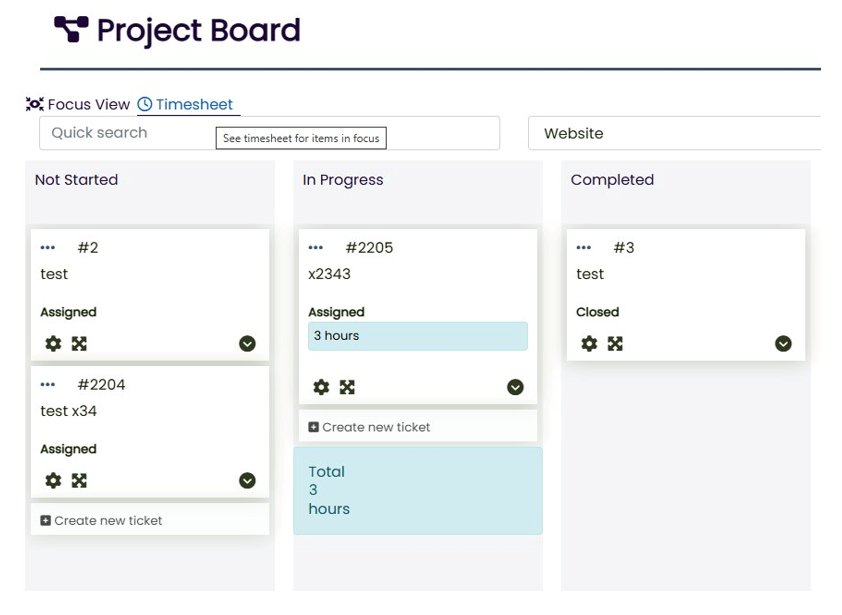
The Timesheet is accessed from the Project Board via the Timesheet tab in the top navigation.
Click the Timesheet link to open the weekly calendar view. If you are on the Focus View of the Project Board, a shortcut button labelled “See timesheet for items in focus” is also available next to the quick search field.
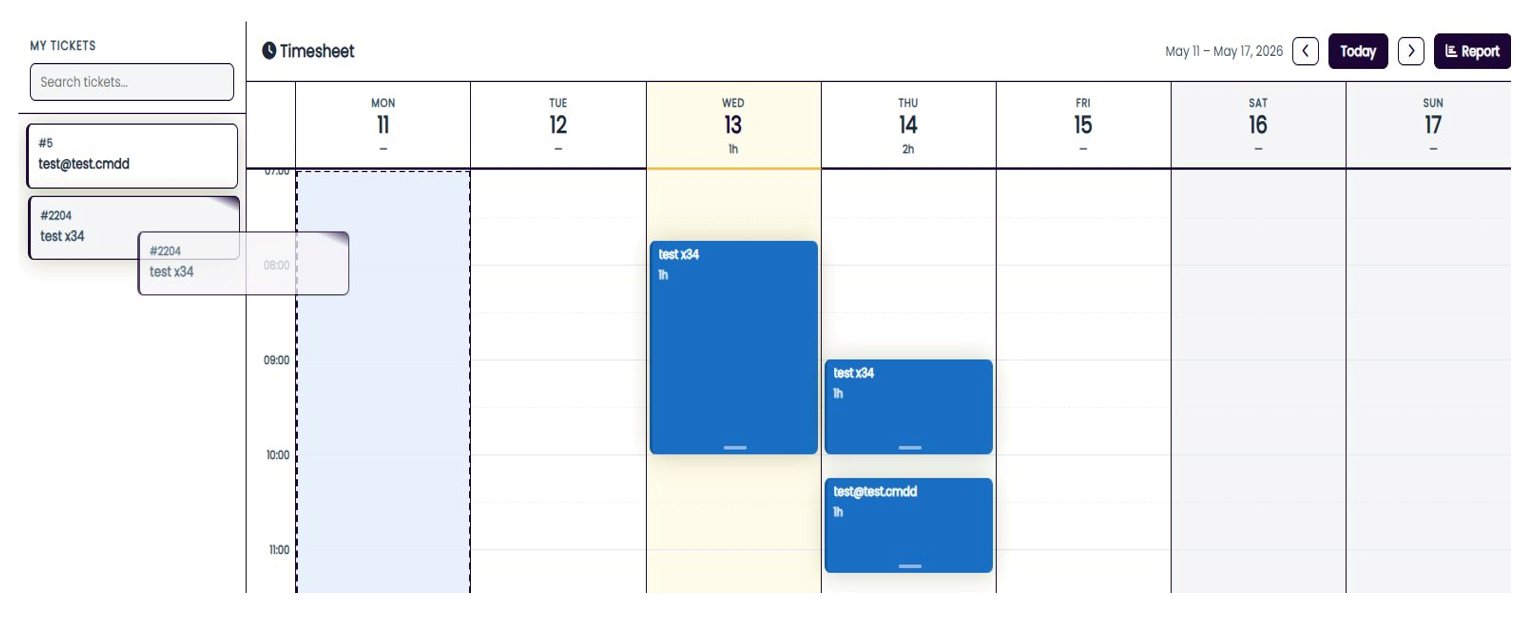
The timesheet is divided into two areas:
- My Tickets panel (left) — lists all Helpdesk tickets currently assigned to you. Use the search box to filter by ticket number or title.
- Calendar grid (right) — a Mon–Sun weekly view with a time axis from 07:00 to 20:00. Each column represents one day.
Week Navigation
Use the toolbar at the top of the calendar to move between weeks:
- Left / Right arrow buttons — navigate to the previous or next week.
- Today button — jumps back to the current week.
- The date range label (e.g. “11 May – 17 May 2026”) shows the week currently displayed.
- Daily totals are shown under each day header, displaying the total billed hours for that day.
Logging Time (Drag and Drop)
To create a new time entry:
- Find the ticket in the My Tickets panel on the left.
- Click and drag the ticket card onto the calendar grid, dropping it onto the day and time slot where the work occurred.
- A one-hour block is created at the dropped position, snapping to the nearest 15-minute interval.
- The block appears on the calendar immediately.
The same ticket can be dragged to the calendar multiple times to create multiple sessions. The ticket remains in the left panel after scheduling.
Moving a Time Entry
To change the day or time of an existing entry:
- Click and drag the coloured block on the calendar.
- Drop it onto the new day and time. The block snaps to 15-minute increments.
- The duration is preserved — only the start and end times are updated.
Within the mition timesheet module Users can:
- Log time against Helpdesk tickets by dragging tickets onto a weekly calendar
- Move and resize time entries with 15-minute precision
- Add notes and view ticket, project, and billing details
- Track multiple work sessions for the same ticket
- View invoiced and locked entries
- Run timesheet reports across custom date ranges
- Filter results by ticket, project, or description
- Export detailed timesheet records to CSV for reporting and invoicing
This webpage was built with Mition