Custom Fields
Knowledge Base > Members > Custom Fields
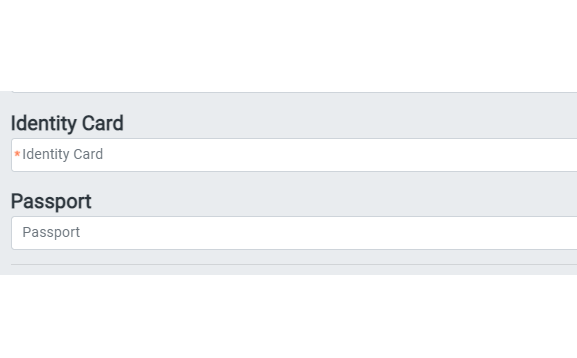
Mition comes with many fields as standard, but when our extensive list of fields does not match, then each organisation has the ability to create up to 18 custom user fields. This page discusses User Custom Fields, suppliers (or Organisations) and Forms have custom fields also.
These 18 free spaces on the User Table you are able to utilise as your organisations' individual custom fields. The main benefit of using these fields is that they are on the User database table and can be used in reporting and filters on the main Member Search page.
There are 8 custom fields available for Suppliers & Forms.
How to create custom fields.
Go to the Admin Settings page > Members > Custom User fields
Or for suppliers, you can add custom fields by going to
Admin Settings page > Suppliers> Custom User fields
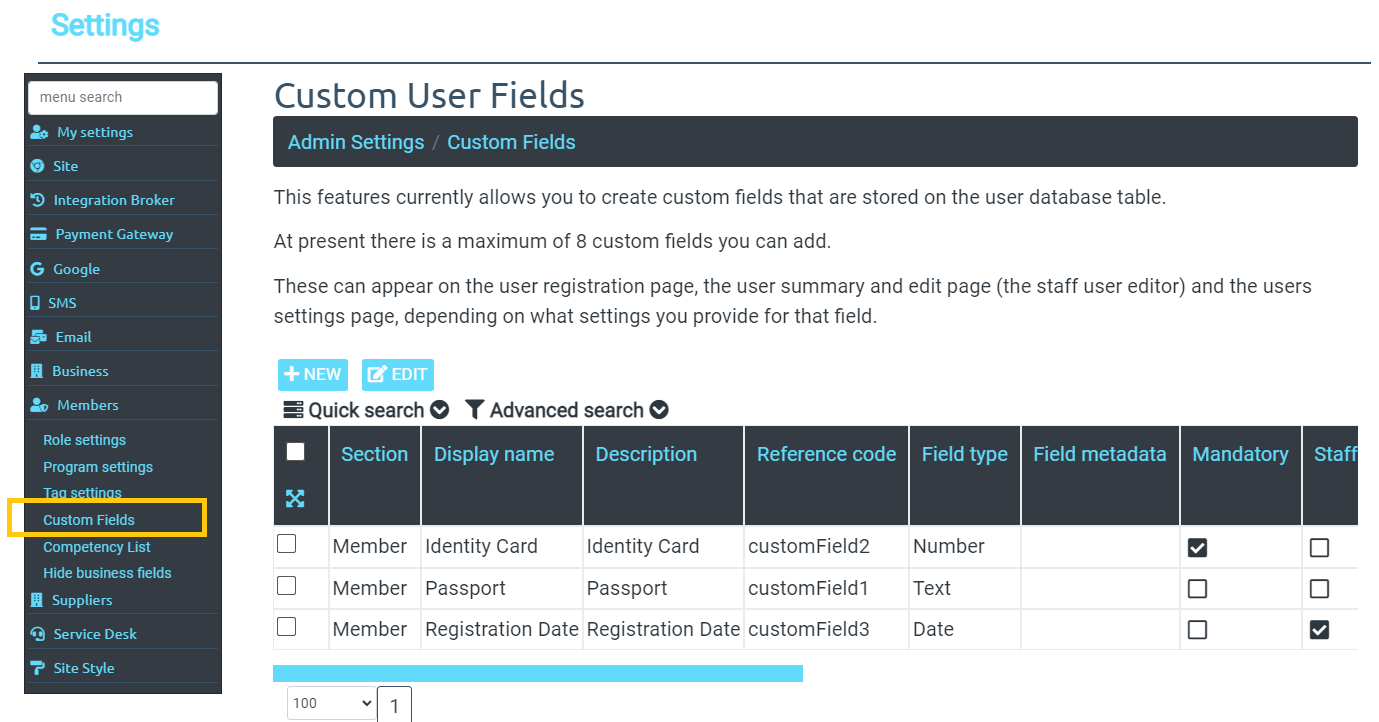
Note: If a field is 'staff only' it will only ever appear on the User Editor form that staff/admins see. It will not be seen and cannot be edited by the user .
Member Registration Page
If the option Display on Registration Page (isDisplayedOnRegistrationPage) is enabled, the field will appear during the new member signup process.
This is commonly used to collect important onboarding information immediately.
Examples:
- Dietary requirements
- Branch selection
- Terms acceptance
- Membership category
Note:
Registration display is disabled automatically if the field is marked Staff Only.
Member Profile / Settings Screen
Custom Fields may appear within the member’s own profile or settings area.
This allows members to:
- View the field
- Edit the field (if permitted)
If the field is marked Member Read Only, members can see it but cannot change it.
Typical member-visible fields include:
- Preferences
- Professional details
- Membership attributes
Staff User Editor (Admin View)
All Custom Fields are available within the staff-facing user editor, allowing administrators to view and manage member data.
Staff can edit values even when:
- The field is Member Read Only
- The field is hidden from members
This ensures internal governance and controlled updates.
User Summary Screens (Staff View)
Custom Fields may also appear in admin / staff summary views of user accounts, supporting operational workflows such as:
- Membership management
- Invoicing
- Subscriptions
- & other modules where user is joined.
When creating a Custom Field in Mition, you must choose a Field Type.
The Field Type determines how the field is displayed, how users interact with it, and what kind of data is stored.
Mition currently supports the following Custom Field types:
Supported Field Types
Text
A standard single-line text input.
Best for:
- Short answers
- Identifiers
- Free-form labels
Example: Preferred Name
Textarea
A multi-line text field for longer responses.
Best for:
- Comments
- Additional notes
- Extended descriptions
Example: Accessibility Requirements
Number
A numeric input field.
Optional metadata can be used to enforce a range (e.g., 0,100).
Best for:
- Scores
- Quantities
- Numeric limits
Example: Years of Experience
Date
A calendar-based date selector.
Best for:
- Renewal dates
- Expiry dates
- Key milestones
Example: Certification Expiry
Checkbox
A simple Yes/No toggle.
Best for:
- Boolean flags
- Confirmations
- Opt-in fields
Example: Subscribe to Updates
Dropdown
A single-select list of predefined options.
Dropdown values are configured in the field’s metadata.
Best for:
- Membership categories
- Roles
- Standard classifications
Example: Professional Discipline
DropdownMulti
A multi-select dropdown allowing users to choose multiple values.
Best for:
- Interests
- Multiple specialties
- Tag-style classifications
Example: Areas of Practice
Accept Terms
A specialised field type designed for policy or terms acknowledgement.
Typically used on registration forms.
Best for:
- Terms & Conditions acceptance
- Compliance declarations
Example: I agree to the Code of Conduct
Branch
A specialised organisational selector tied to your branch structure.
Used when members must be linked to a defined branch or location.
Best for:
- Branch allocation
- Regional membership assignment
Example: Select Your Branch
Each Custom Field in Mition includes several configuration flags that control who can see the field, where it appears, and whether members are allowed to edit it.
These settings ensure Custom Fields can be safely used for both internal operational needs and member-facing profile information.
Field Access and Display Options
1. Staff Only (isStaffOnly)
When a field is marked as Staff Only, it is completely hidden from members across all screens.
This includes:
- Registration page
- Member profile/settings screens
- Any member self-service views
Staff users can still view and edit the field in the administrative user editor.
Important Behaviour:
When isStaffOnly = true, the system automatically disables other member-facing options:
- Member Read Only
- Display on Registration Page
- Mandatory
Typical Use Cases:
- Internal risk or status flags
- Administrative notes
- Staff-only classification fields
- Compliance review tracking
2. Member Read Only (isMemberReadOnly)
When enabled, this field becomes visible to members, but members cannot edit it.
Staff may still edit the value through the admin interface.
This is commonly used where members should be informed of an outcome, but not permitted to change it.
Typical Use Cases:
- Membership tier assignment
- Accreditation or approval status
- Verified CPD completion indicators
- Branch or region allocations
System Rule:
This option is disabled automatically if the field is Staff Only.
3. Display on Registration Page (isDisplayedOnRegistrationPage)
This option controls whether the Custom Field appears during the new member registration process.
When enabled, the field is shown on the registration form so that it can be collected immediately at signup.
Typical Use Cases:
- Dietary requirements
- Primary discipline or role
- Agreement acknowledgements
- Branch selection
System Rule:
This option cannot be enabled if the field is Staff Only.
4. Mandatory (isMandatory)
When a field is marked as Mandatory, members are required to complete it:
- During registration (if displayed)
- When editing their profile/settings
This ensures key onboarding data is always collected.
Typical Use Cases:
- Required demographic fields
- Professional role selection
- Policy acknowledgements
- Core compliance inputs
System Rule:
Mandatory fields are not permitted when Staff Only is enabled.
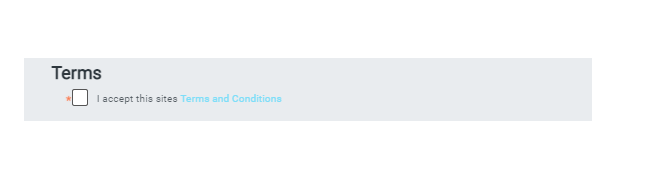
Create an accept 'terms and conditions' for all users registering with your mition site, simply add a custom user field of type 'Accept terms' and put a link to your terms in the description like this <a href='/terms' target='_blank>Terms and Conditions</a> and this will show like a link in the description area.
Make this field mandatory, users cannot proceed without accepting the terms and conditions.
This webpage was built with Mition