How to Process a Refund for Membership Subscriptions (or Any Invoice Paid via Mition)
Knowledge Base | Invoicing | Refund any paid invoice
This guide provides a straightforward process for issuing refunds for membership subscriptions or any invoice paid through Mition. It simplifies the steps involved, ensuring users can efficiently navigate the refund system without confusion. By following this guide, you can save time and avoid potential errors, making it an essential resource for anyone managing subscriptions.
NOTE: This method does not work if a single payment was used for multiple invoices.
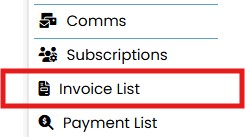
Access the Invoice List
Navigate to the "Invoice List" section from the dashboard.
Use the search bar to find the relevant invoice by number or user name.

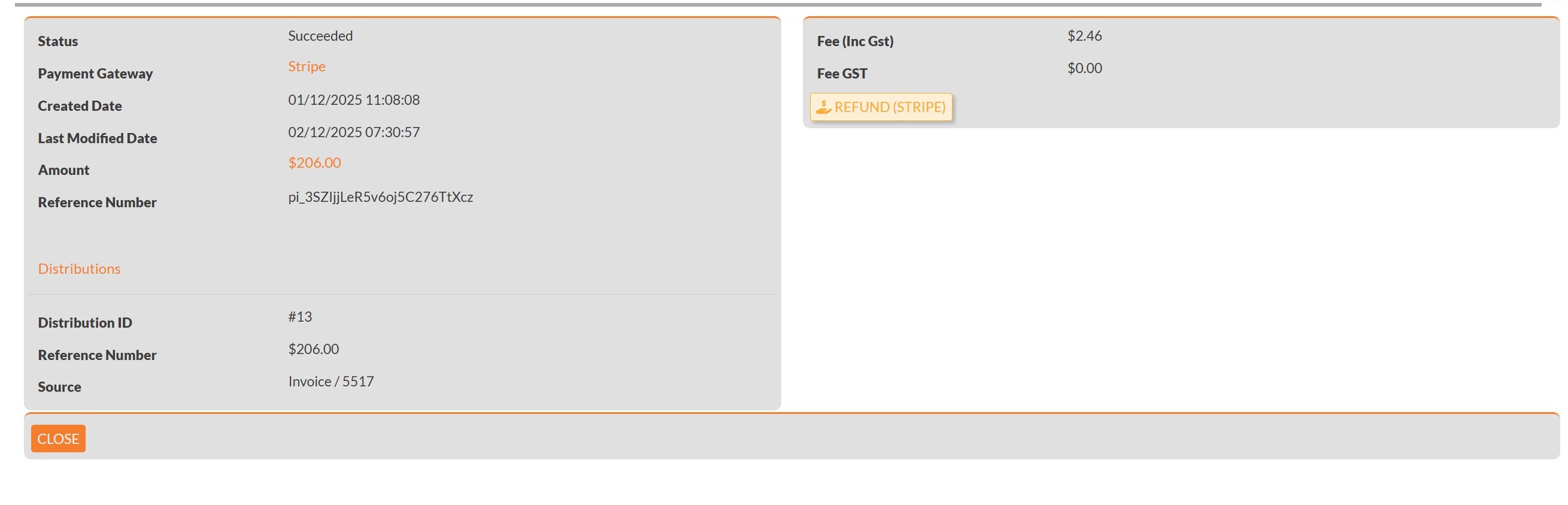
- Click Refund (Stripe).
- In the Amount field, enter the refund amount (up to the full Stripe payment).
- Click Submit & Confirm.



Adjust the Invoice
- The invoice will now show the refunded amount as owing.
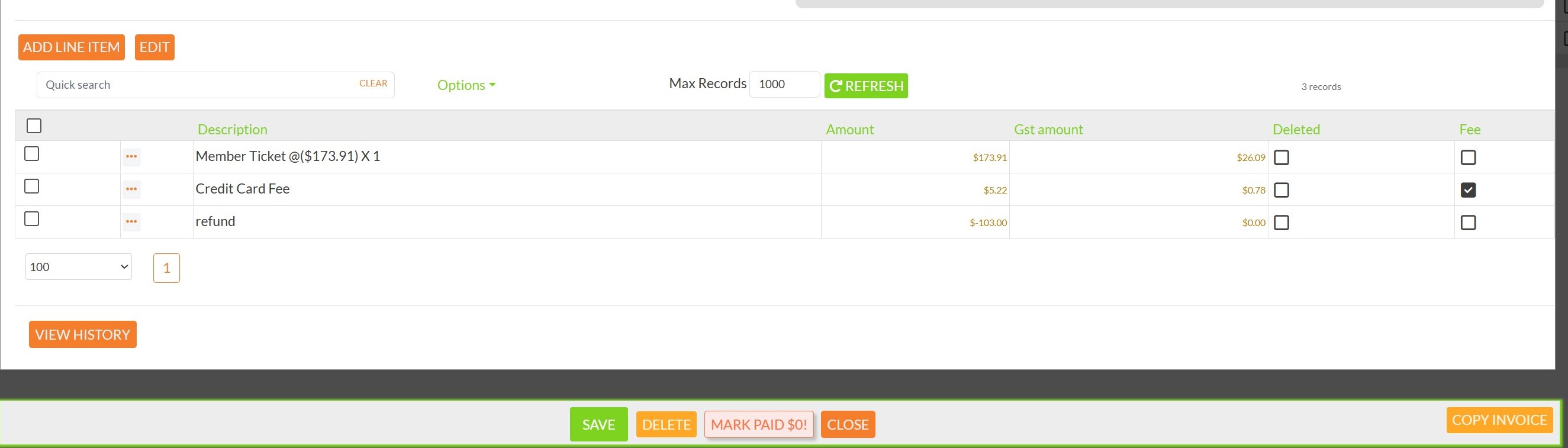
- Adjust the original invoice amount to match the new paid value or add a refunded line item.
⚠️ Since this invoice was already paid in Xero, Mition will not update Xero automatically. You may need to adjust Xero manually to reflect the final outcome.
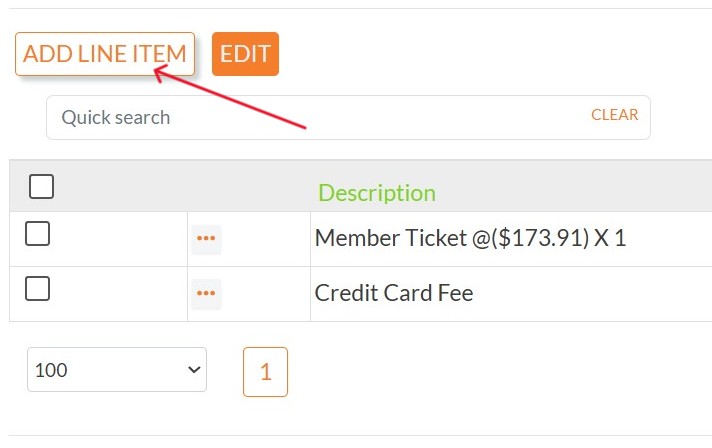
Update Invoice Details
- Select the details as required.
- In the Description field, Enter details
- Add in the Refund Amount
- Click Save.

This webpage was built with Mition