Corporate Memberships
Knowledge Base > Subscriptions > Corporate Membership
Corporate memberships are when a company is the member. These are often used for larger organisations who provide association membership packages for their employees.
Mition caters for this using a combination of the Supplier module and our User Management (Members) module. The corporate membership administrator (or membership owner) must be a signatory for the company as they are responsible for paying all invoices and communications. Often this is a Treasurer, CFO or CEO.
This guide will take you through how to add and edit these membership types
How to create a Corporate Membership

Step 1
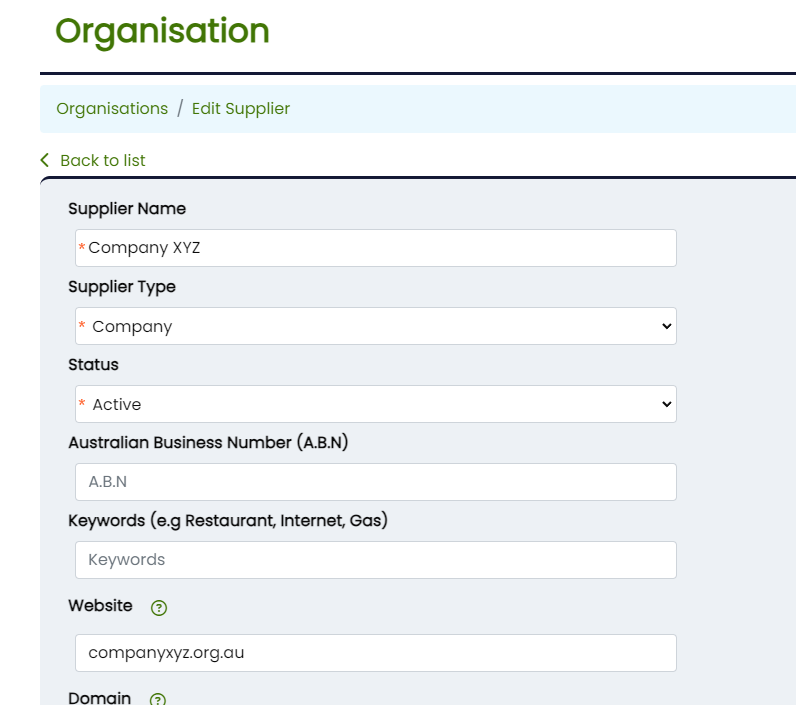
Go to the Organisation tab and create a new entry, e.g. Company XYZ and add an address. Hit Save.
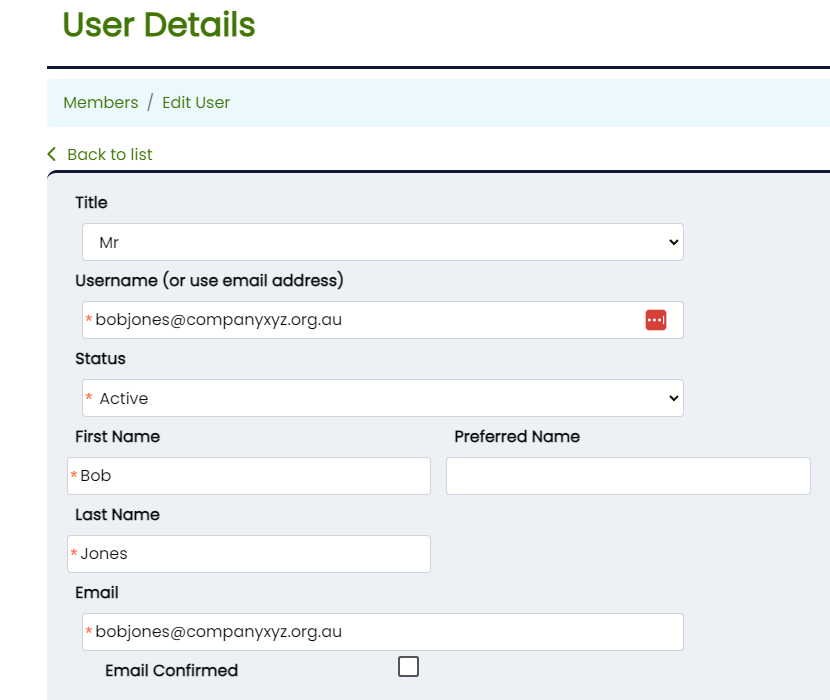

After saving, you'll be taken back to the Linked Member screen.
Double click on "Bob Jones" and go to the Subscriptions tab. Add the relevant Corporate subscription to the Administrator.
The relationship ADMIN can be given special rights and access.
Go into Admin Settings > Members > Relationship Settings.
In ADMIN check the box "isOwner" and save.
To check this, impersonate Bob Jones. You will see that there is a new section called My Supplier or My Organisation in the left side menu.
In here this user now can manage this Organisation, including user management (remove/add members) as well as any settings such as whether to include in any website lists and some public information such as website/contact details.
If your organisation sells memberships or subscriptions to Businesses, there are now 3 great ways to allow that organisation to self manage by adding their own members AND you can optionally give these new members instant subscription access without manual intervention (although you can do this easily manually too).
Method 1
If you make the relationship between the main account holder and the supplier/organisation an 'isOwner' relationship type, they get the option to edit their own organisations basic details (logo, name, abn, phone, website) but can also add and remove users from the organisation.
When they add a member, it is added to your main member database and linked to this organisation. How to Set Up: Add a Workflow to automatically assign a subscription to certain members as they are added.
Use the workflow under "Relationship" called "Auto assign to subscription based on supplier relationship ".
In this workflow you can assign the relationship by default with this supplier and add any subscriptions (e.g. a hidden complimentary subscription term price). You can also limit this to only work for specific users being added to a supplier type (e.g. Companies not Venues).
Method 2
You can use the domain on an organisation account, to add the email domain extension, for example for Mition, we would use the email extension mition.com.
You can then add a workflow that automatically registers users based on their email extension, e.g joe@mition.com would automatically be added to the Mition organisation! How to Set Up: Add a workflow to automatically assign a subscription to certain members as they are added.
Use the workflow under "Registration" called "Auto assign to supplier based on email domain". In this workflow you can assign the relationship by default with this supplier and add any subscriptions (e.g. a hidden complimentary subscription term price). You can also limit this to only work for specific users being added to a supplier type (e.g. Companies not Venues).
Method 3
This was the original method, your staff can create a page where a link can be generated that can be sent out to their members to self register. It is a little more difficult to setup, but allows a high degree of self management. Use the Registration (Corporate) web component, this gives staff the ability to tailor a subscription type that will be given, then create a link for each supplier (you need to preview the page as a staff member to create a link).
Each link is directly related to a specific supplier and users will be added to that supplier as well as given any subscription required. The link has the Suppliers GUID (Globally Unique Identfier), so once you create a single link you can replace that GUID with the users own [LastSupplierGuid] to effectively automate an email with a link to that supplier.
This will be the last supplier GUID added to that user.
Ideal for sending to Corporate subscription holders who you have manually added to a supplier record, you can automate creating the link they can send to their members.
Method 4
This new method allows Corporate Admins to bulk purchase their own subscription quantities and applies any bulk discounts (e.g. 5% discount for 10+ subscriptions). This new tool is in the Corporate Admin section, if a user is connected to an organisation with a relationship flagged as "isOwner" this opens up the My Organsation menu for that user, which has a range of tools available. The Bulk Subscription section is where they can elect to purchase multiple subscriptions (annual only at this stage) and pay in bulk for these. The tool shows any discounts for bulk subscriptions (a new feature under Admin settings > Members > Enable Bulk Discounts) and once paid for the user can allocate the subscriptions to any user connected to that supplier.
What happens when the membership administrator no longer works at the organisation?
Using our Bob Jones example user, we first go to the Organisations tab and find Company XYZ.
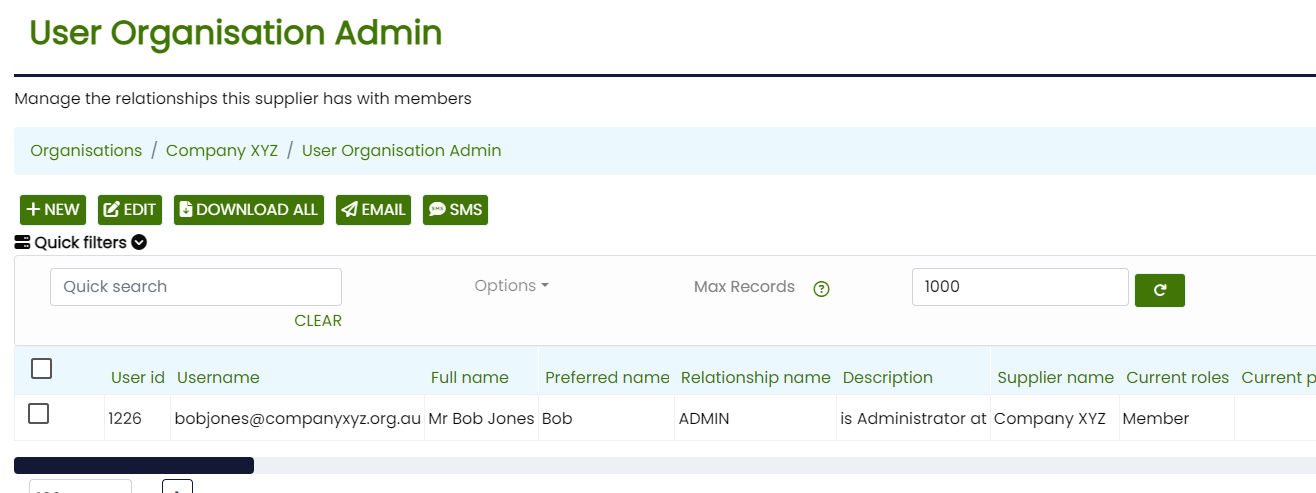
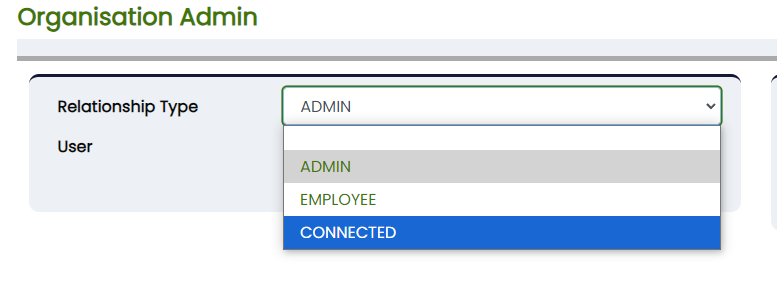
For this example, we will give them an "Connected" relationship type.
We then need to:
1. Assign a new Organisation Admin and add a Corporate subscription to their profile (ensuring the same subscription type and details that were on Bob Jones)
2. Remove Bob Jones Corporate subscription and assign them the relevant subscription type (checking against other connections in the Organisation to ensure it remains consistent)
How to disconnect a member from their organisation?
When a member leaves their organisation or is no longer required to be on their member list. We can disconnect the relationship, without losing any of the member data.
This is especially important if a user wants to retain their profile and stay on as a member in a different capacity.
We will again use Bob Jones as our example.
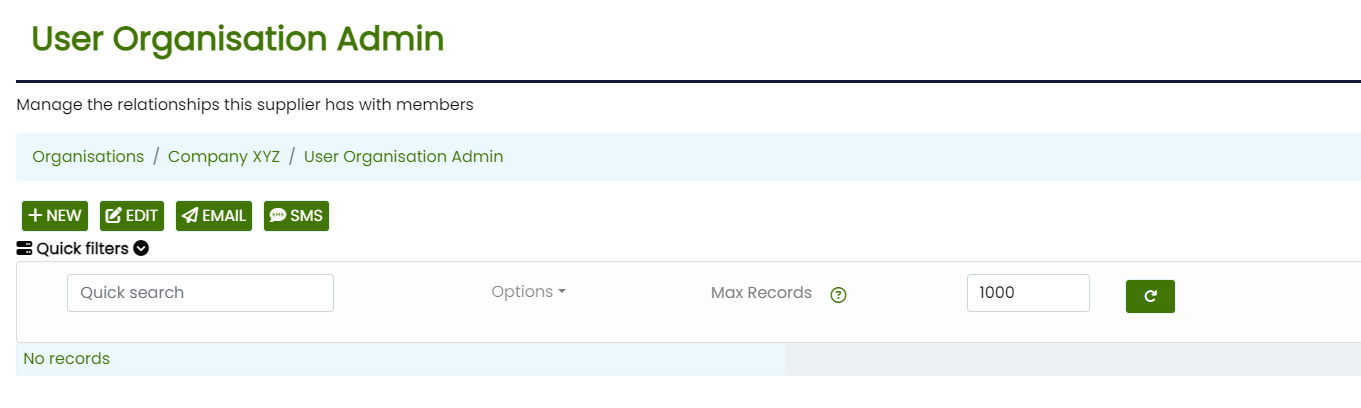
In the Organisation Admin screen, double click on Bob Jones.
Select Clear as indicated below, and hit Save.

Bob Jones has now been removed from Company XYZ.
If required, you can then go into Bob's member profile to assign a new subscription and make any changes to contact details etc.
Corporate Subscriptions
Bulk Orders, Discounts & User Allocation
Overview
Corporate Subscriptions allow organisations to purchase subscriptions in bulk, apply automatic volume discounts, and allocate those subscriptions to individual users.
This system is designed to give Corporate Administrators full visibility and control over:
- What has been purchased
- How many subscriptions are in use
- Who has access
- Whether the organisation is approaching or exceeding its licensed limits
Who Can Use This?
Only Corporate Administrators for an organisation can:
- Create bulk subscription orders
- View subscription usage
- Allocate or remove subscriptions from users
- Recalculate subscription usage
Bulk Subscription Orders
What are Bulk Orders?
Bulk Subscription Orders allow an organisation to purchase multiple subscriptions at once, often at a discounted rate based on total volume.
Each order:
- Can include multiple subscription types
- Has a defined start and end date
- Is linked to an invoice
- Contributes to the organisation’s total licensed subscription count
Creating a Bulk Order
- Click “New Subscription Order”
- Add one or more subscription term prices and quantities
- Review the total and discount applied
- Submit the order
- Once approved and paid, the subscriptions become available for allocation
Draft orders do not contribute to licensed usage until approved and invoiced.
Subscription Usage Dashboard
What This Shows
The Current Subscription Usage table provides a live snapshot of:
- Subscription name and term
- Number of licenses purchased
- Number of users currently allocated
- Paid-up-until date
This data is recalculated automatically, but can also be manually refreshed.
Recalculate Totals
Click “Recalculate totals” to:
- Re-sync usage with paid invoices
- Re-check active user subscriptions
- Correct any discrepancies
This is safe to run at any time.
Usage Warnings
The system automatically highlights risk areas:
⚠️ At Capacity
Displayed when:
- Current usage equals licensed count
Action recommended:
- Purchase additional licenses, or
- Remove subscriptions from inactive users
🚨 Over-Utilised
Displayed when:
- More users are allocated than licenses purchased
Action required:
- Reduce user allocations, or
- Purchase additional subscriptions
Managing User Allocations
Opening the Allocation Tool
- Select a row in Current Subscription Usage
- Click “Manage Users”
This opens the Subscription Allocation Editor for the selected subscription.
Subscription Allocation Editor
What You See
The editor is split into two lists:
Users with This Subscription
- Users currently allocated this corporate subscription
- Shows relevant user details and subscription end date
Available Users
- All users connected to the organisation
- Automatically excludes users who already have this subscription
Adding a Subscription to Users
- Select one or more users from Available Users
- Click “Add selected”
The system will:
- Assign the corporate subscription
- Apply corporate roles automatically if required
- Recalculate usage totals
If the organisation is at or over capacity, warnings will be shown.
Removing a Subscription from Users
- Select one or more users from Users with this subscription
- Click “Remove selected”
The system will:
- Cancel the user’s corporate subscription
- Remove any corporate roles granted by the subscription
- Recalculate usage totals
How Capacity Is Enforced
This system uses soft enforcement:
- Users can be allocated beyond licensed limits
- Over-utilisation is clearly highlighted
- Administrators remain in control of how to resolve it
This avoids blocking urgent access while still ensuring compliance visibility.
Best Practices
- Regularly review the Current Subscription Usage table
- Address warnings before renewal or billing cycles
- Recalculate totals after large user changes
- Use bulk orders to plan growth ahead of time
Summary
Corporate Subscriptions give you:
- Clear visibility
- Centralised control
- Flexible allocation
- Built-in safety warnings
All without forcing hard limits that block your organisation when it matters most.
This webpage was built with Mition