Download Refunded Invoices
Knowledge Base | Invoicing | Download Refunded Invoices
Managing financial records efficiently is essential for maintaining transparency and accuracy. This guide outlines a simple and effective method for locating and downloading refunded invoices using the invoice management interface. Whether you're handling personal accounts or overseeing business finances, these steps will help streamline your workflow and improve record-keeping
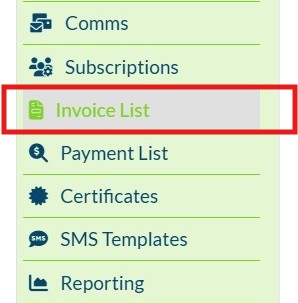
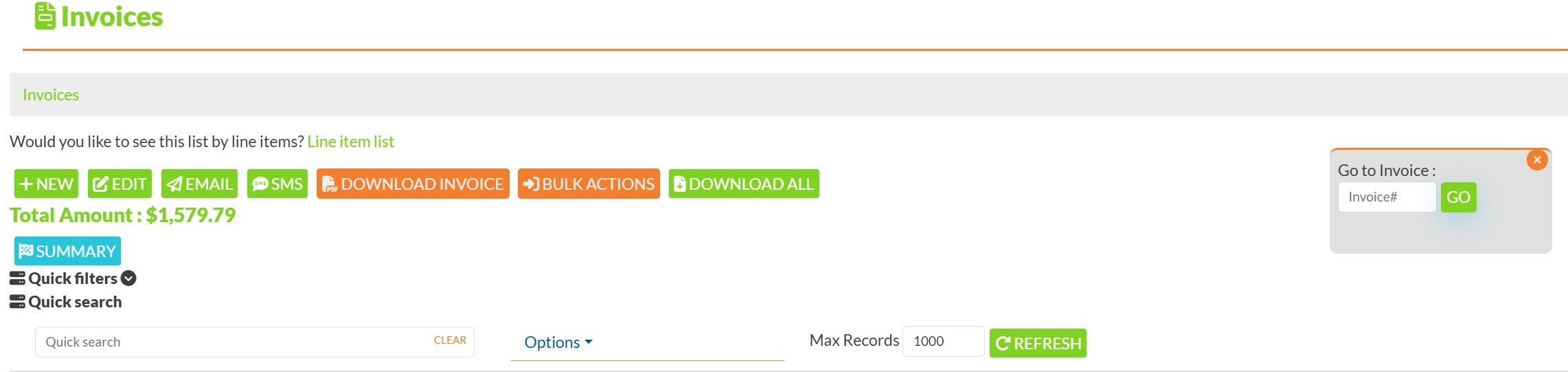
Apply Advanced Search Filters
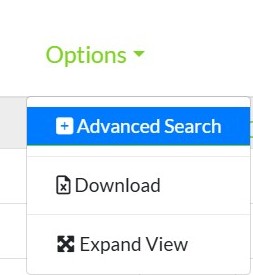
- Click Options on the Payment List screen.
- Select Advanced Search.
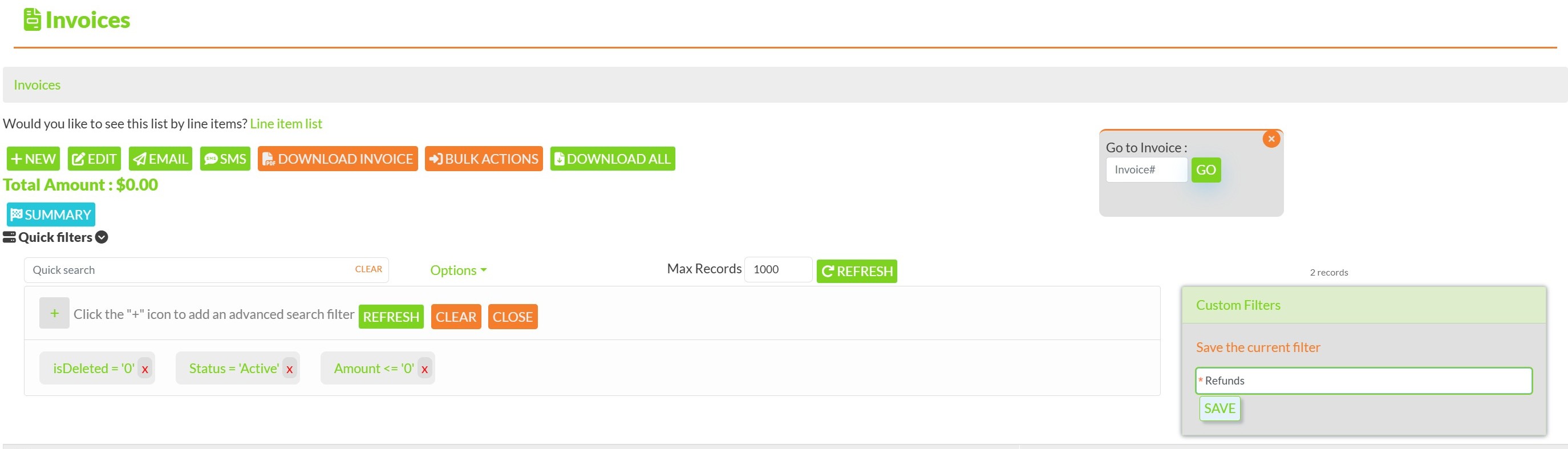
- Click the + button to add a new filter
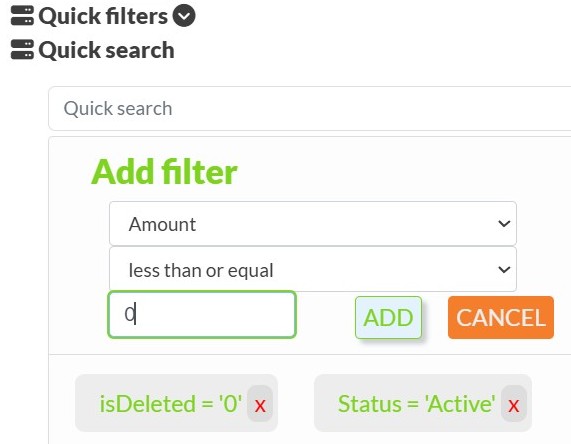
Set the Refund Filter
Choose "Amount" from the dropdown.
Select "less than or equal".
In the value field, type "0".
Click "Add".
Apply a Date Range (Optional)
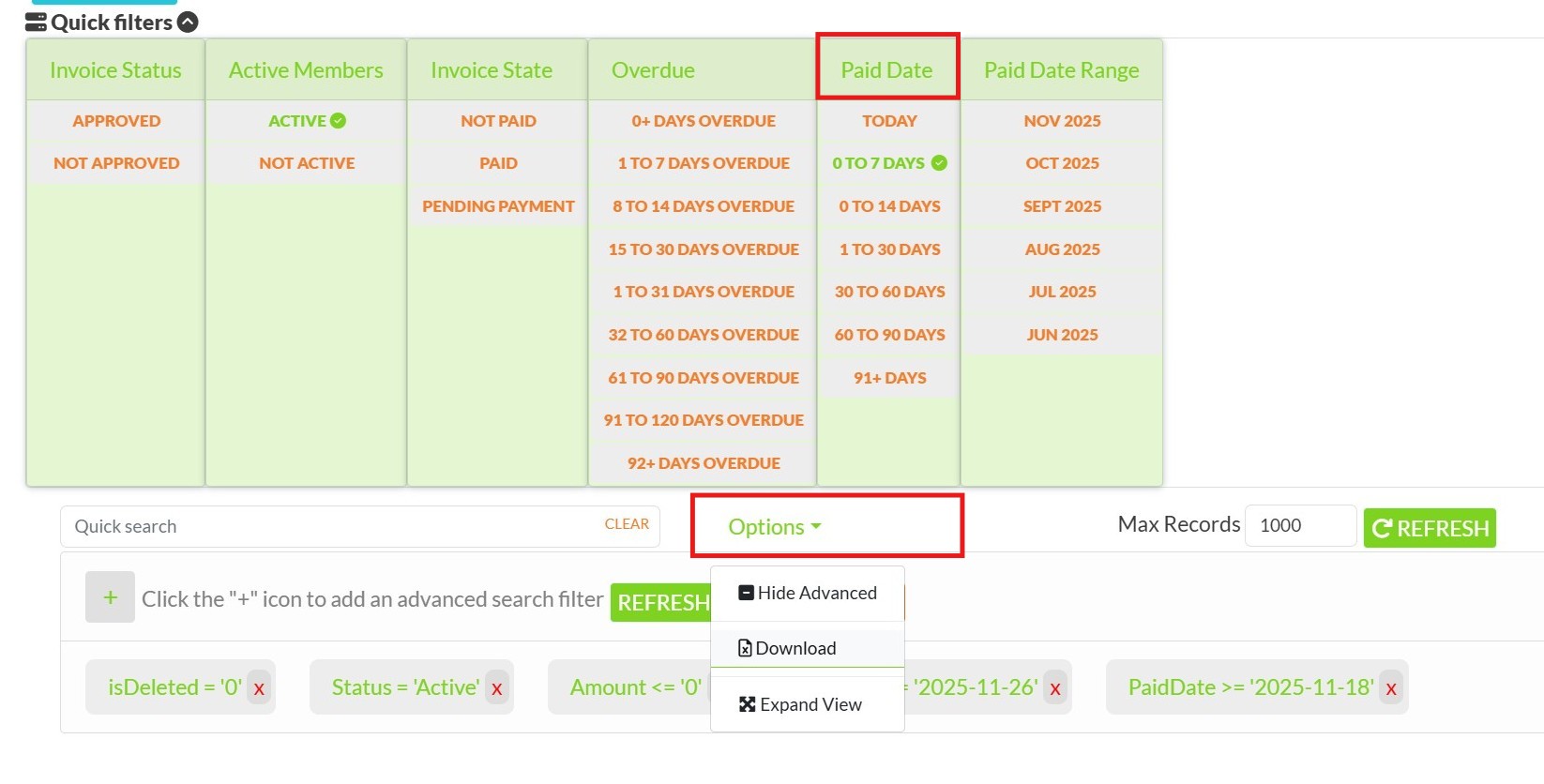
- Click one of the quick date filters such as 7 Days, 14 Days, or 28 Days.
- These filters will automatically add date conditions to your search.
- This will automatically apply filters where
PaidDate <= today + 1andPaidDate >= today - 7. - You can further refine these values in the Advanced Search panel if needed.
Download the Refunded Invoice List
- Click Options again.
- Select Download to export the filtered refund data.
- The report will be downloaded in spreadsheet format for further analysis or record-keeping.

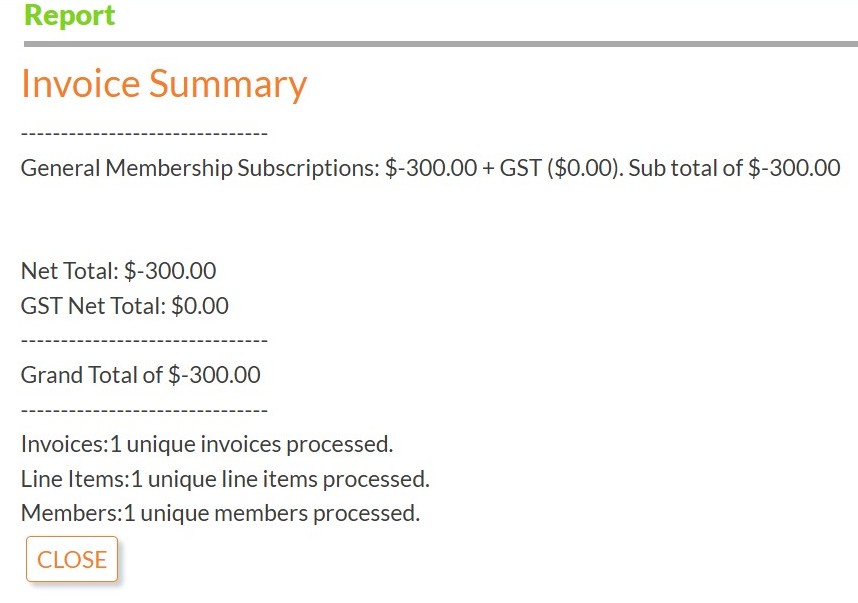
Click the "SUMMARY" button to generate a financial summary grouped by GL code.
Once done, click "Close" to exit the summary view.
This webpage was built with Mition