Transferring Paid Invoices
Knowledge Base | Invoicing | Transferring Paid Invoices
In certain cases, administrators may need to update the user associated with a paid invoice—such as when a payment was made under the wrong profile or when consolidating duplicate member records. This guide outlines the correct process for editing a paid invoice using the Admin Edit function, while ensuring compliance with external finance systems and maintaining reconciliation integrity
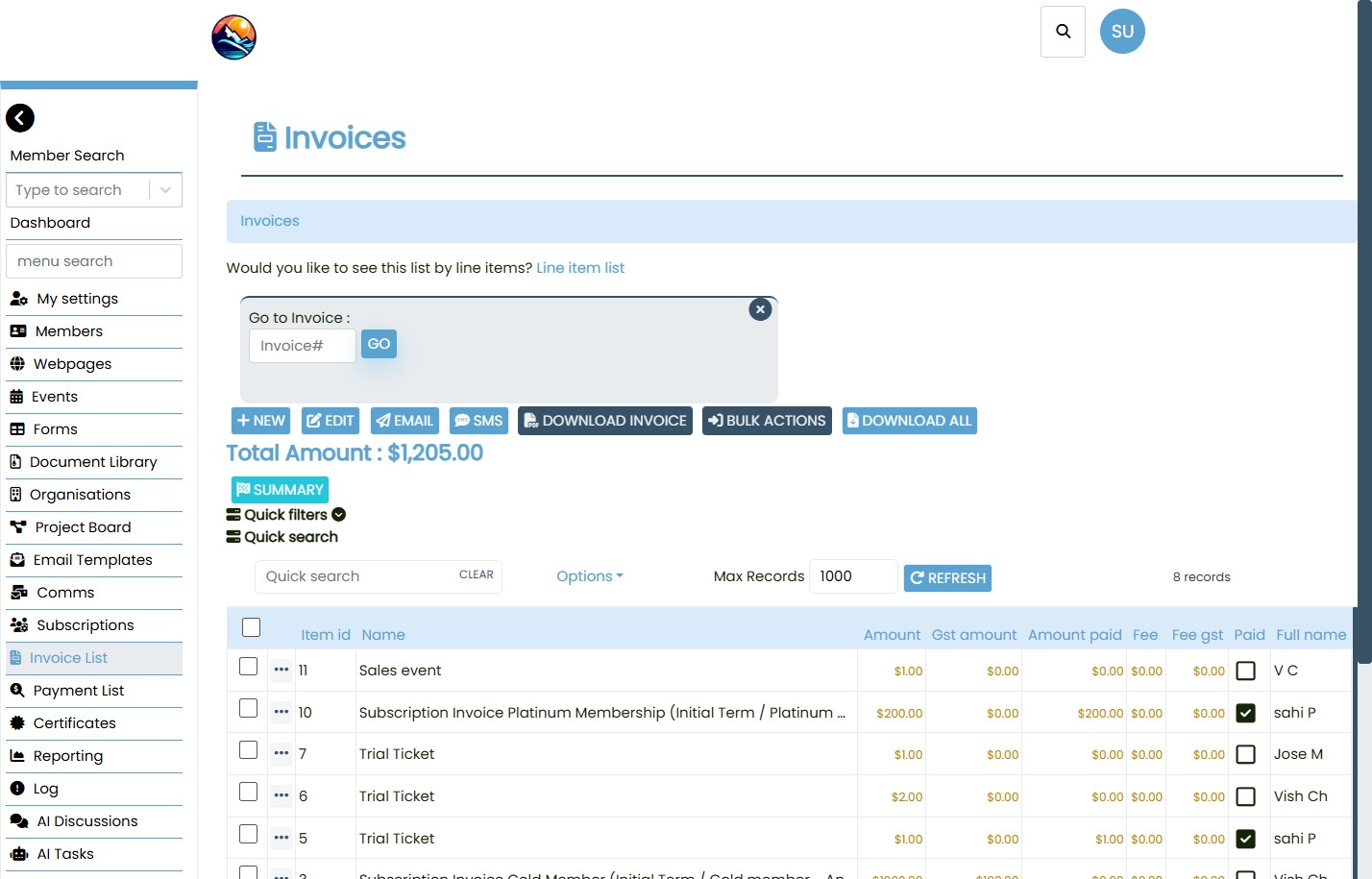
Access the Invoice List
Navigate to the "Invoice List" section from the dashboard.
Use the search bar to find the relevant invoice by number or user name. Confirm the invoice is marked as Paid and note the associated user.
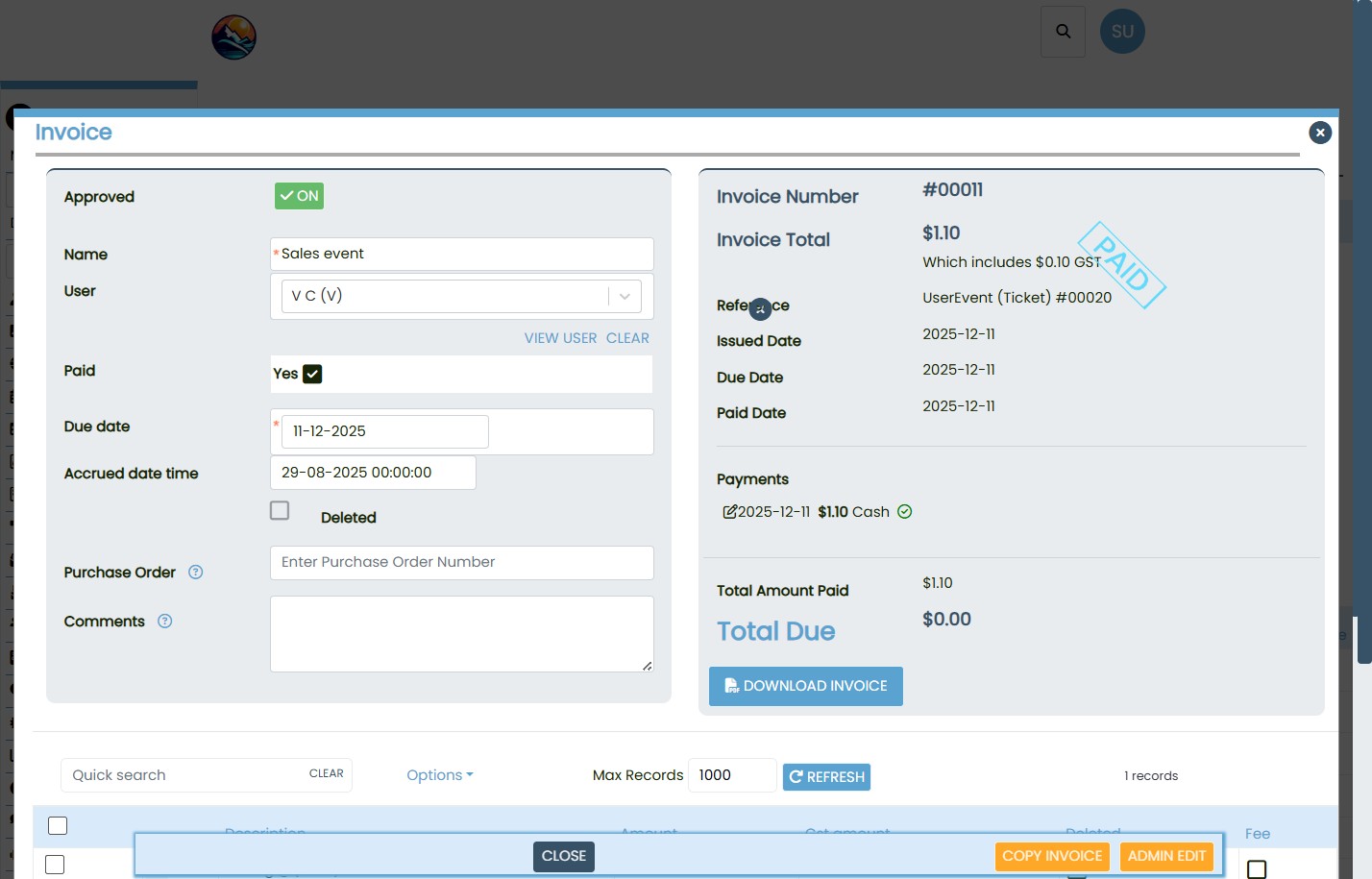
Open the Invoice for Editing
- Click on the invoice to open its details.
- Select ADMIN EDIT at the bottom of the screen.
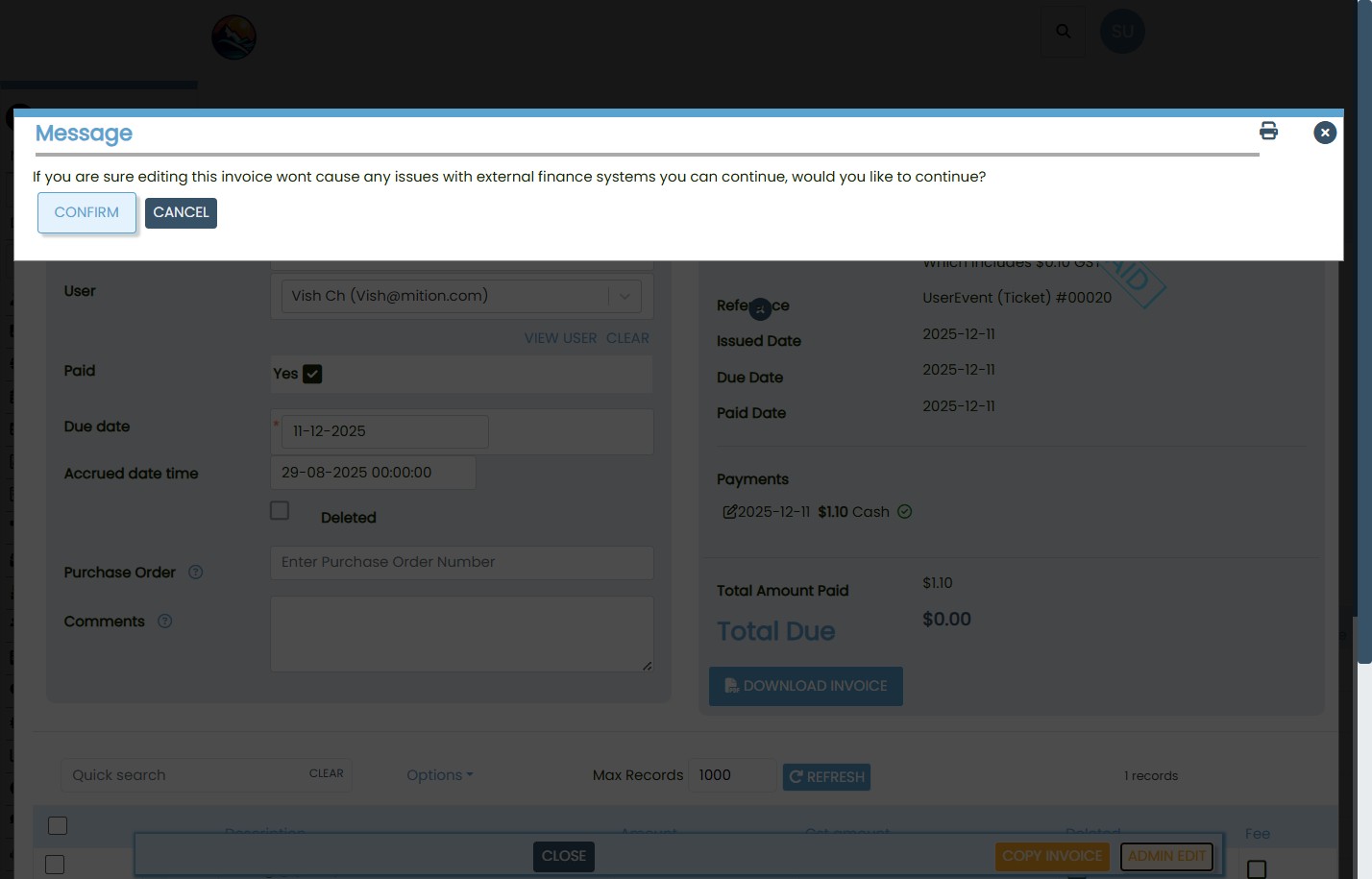
- A warning message will appear:
“If you are sure editing this invoice won’t cause any issues with external finance systems you can continue…” - Click CONFIRM to proceed.
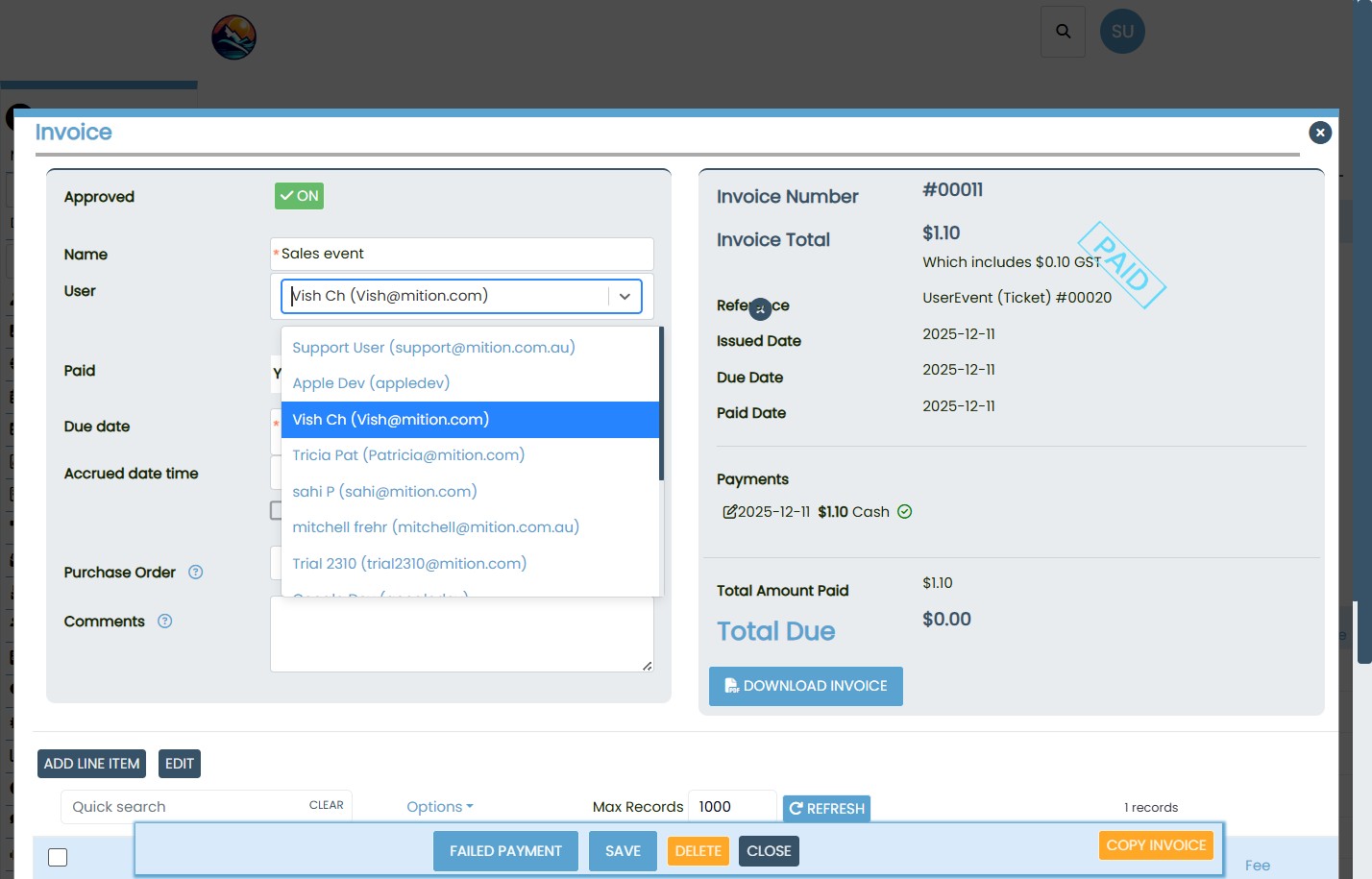
Change the User
- In the left panel, locate the User dropdown.
- Select the correct user from the list.
- Ensure all other invoice details remain unchanged (e.g. Paid status, dates, reference).
Save the Changes
- Click SAVE at the bottom of the screen.
- The invoice will now reflect the updated user while retaining its paid status and payment history.
Notes
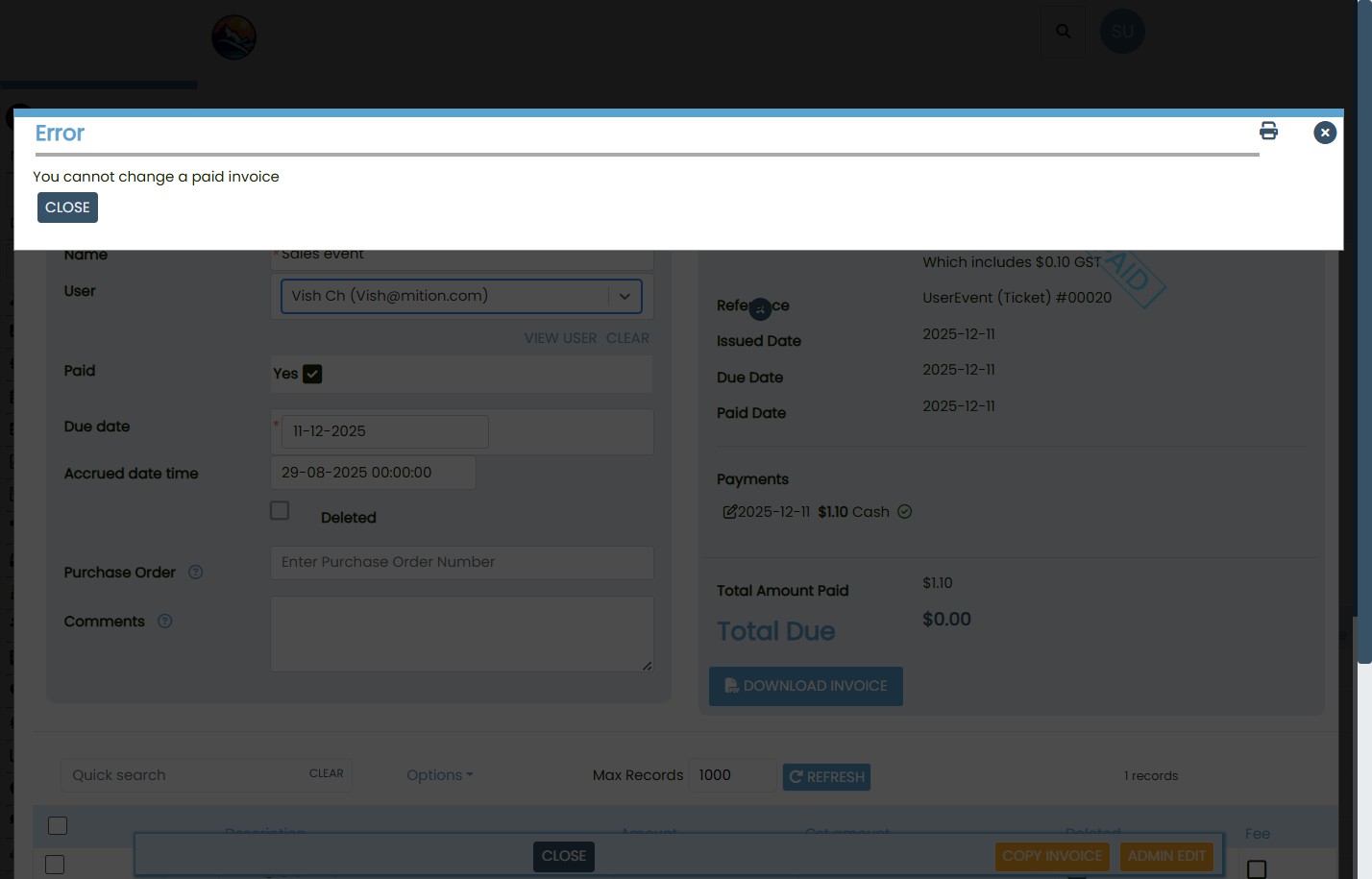
- Paid invoices cannot be transferred directly between profiles. Attempting to do so will trigger an error: “You cannot change a paid invoice.”
- Using Admin Edit allows you to reassign the invoice without affecting reconciliation, provided the change is made carefully.
This webpage was built with Mition