Setting Up Email Notifications for Submitted Forms
Knowledge Base > Forms > Setting Up Email Notifications for Submitted Forms
This guide provides an overview of how to configure and manage electronic forms within the organisational platform. The system allows staff to create, launch, and administer forms for a variety of purposes, such as collecting user information, triggering workflow activities, and sending automated email notifications. With flexible components and tagging options, forms can be tailored to suit a wide range of operational needs.
Advanced Features
You can alter the advanced features of a form, this will help you to understand what these advanced features do:
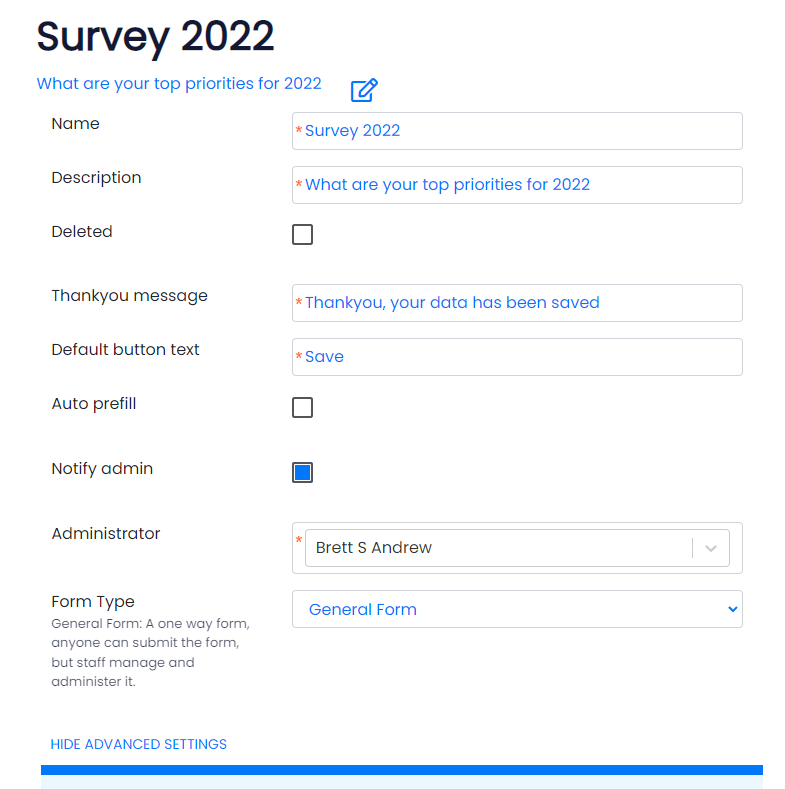
Thankyou Message: This is the message that appears to users when they submit the form.
Default button Text: You can change the SAVE button on the form.
Auto pre-fill: For some form types, it prefills the data with the user (or suppliers) last record
Notify Admin: An email to the Form Administrator is sent when a user submits a form (only for new forms submitted by members via the website, not for forms submitted by staff)
Supplier Form: This form is shared by users connected to a supplier (in your organisation a Supplier might be a Village, Kindergarten, Organisation, Branch or a Venue as you can rename this module). Supplier Forms can allow you to "Pre-Fill" data from the last form filled out, so perfect for a refresh of key contacts / financial data or other.
Paid Form: Paid forms allow you to set very basic pricing based on Roles (e.g staff, public & different member pricing). It will allow you to select a General Ledger code and calculate GST if applicable for that General Ledger Code. The form has a message indicating the cost for the form and when completed an invoice is generated and the user is navigated to the pay screen.