Event-Defaults Workflow
Knowledge Base | Workflow | EventDefaults Workflow
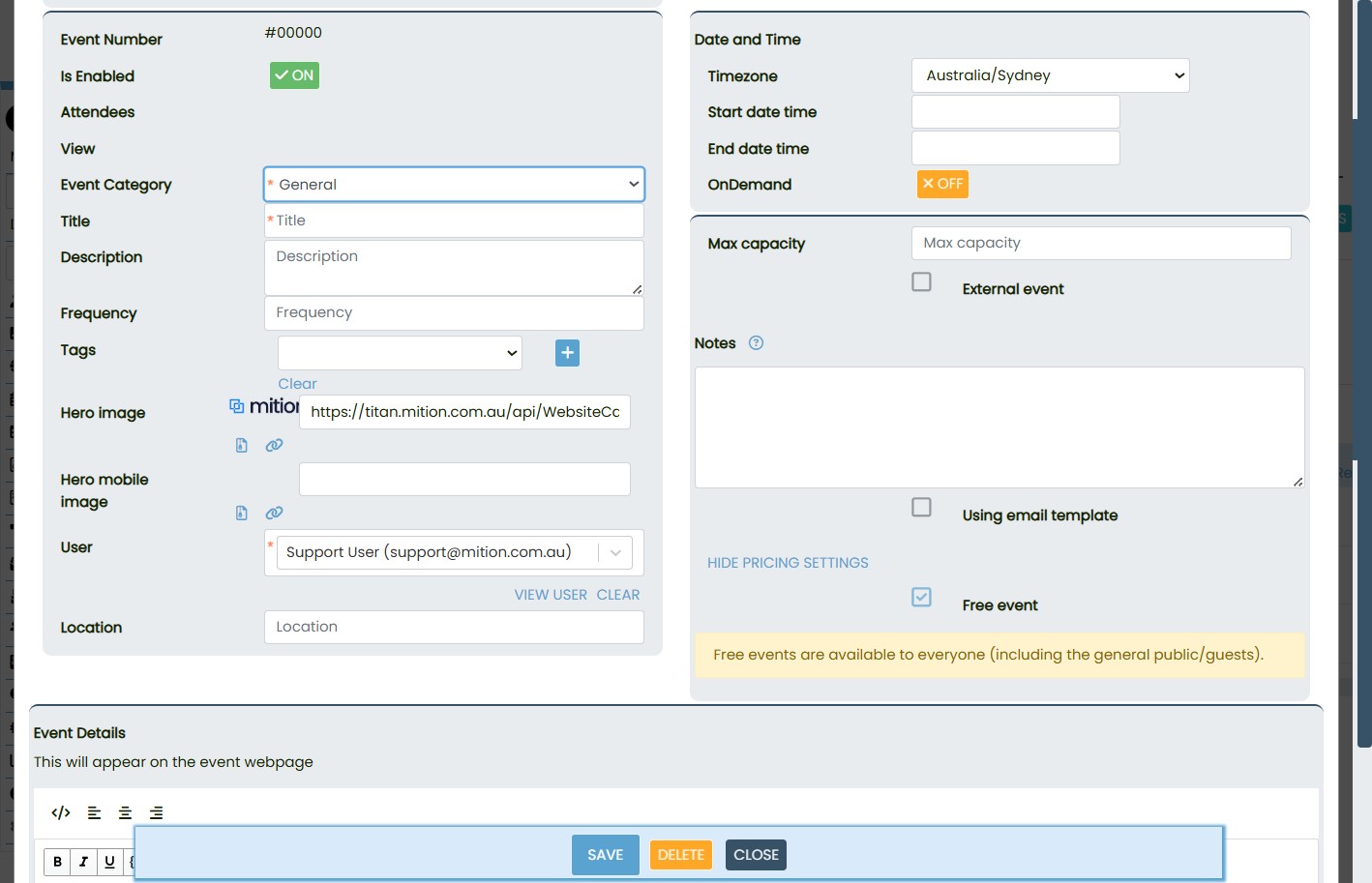
This document outlines recent improvements to the EventDefaults workflow, designed to streamline the event creation process and ensure consistency across events. When a user creates a new event and selects a category, the system now automatically applies a set of predefined values, reducing manual input and enhancing the overall user experience.
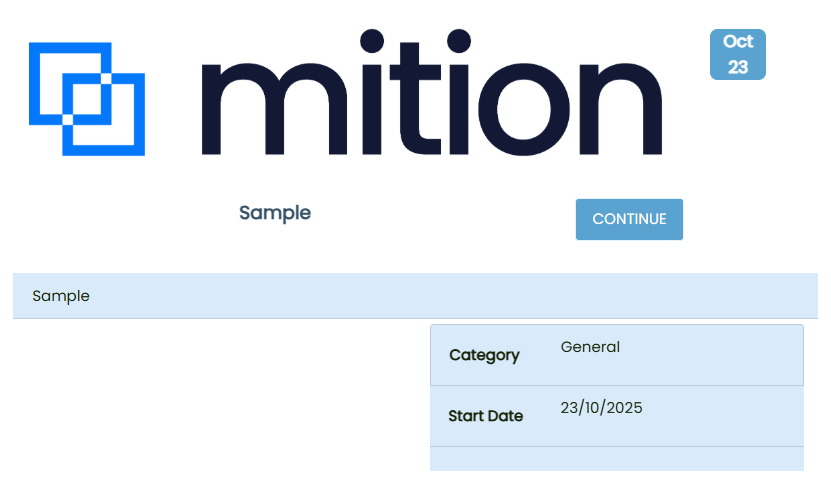
These enhancements include the ability to configure multiple default fields, as well as the addition of a Hero image to provide a unified visual identity for events.
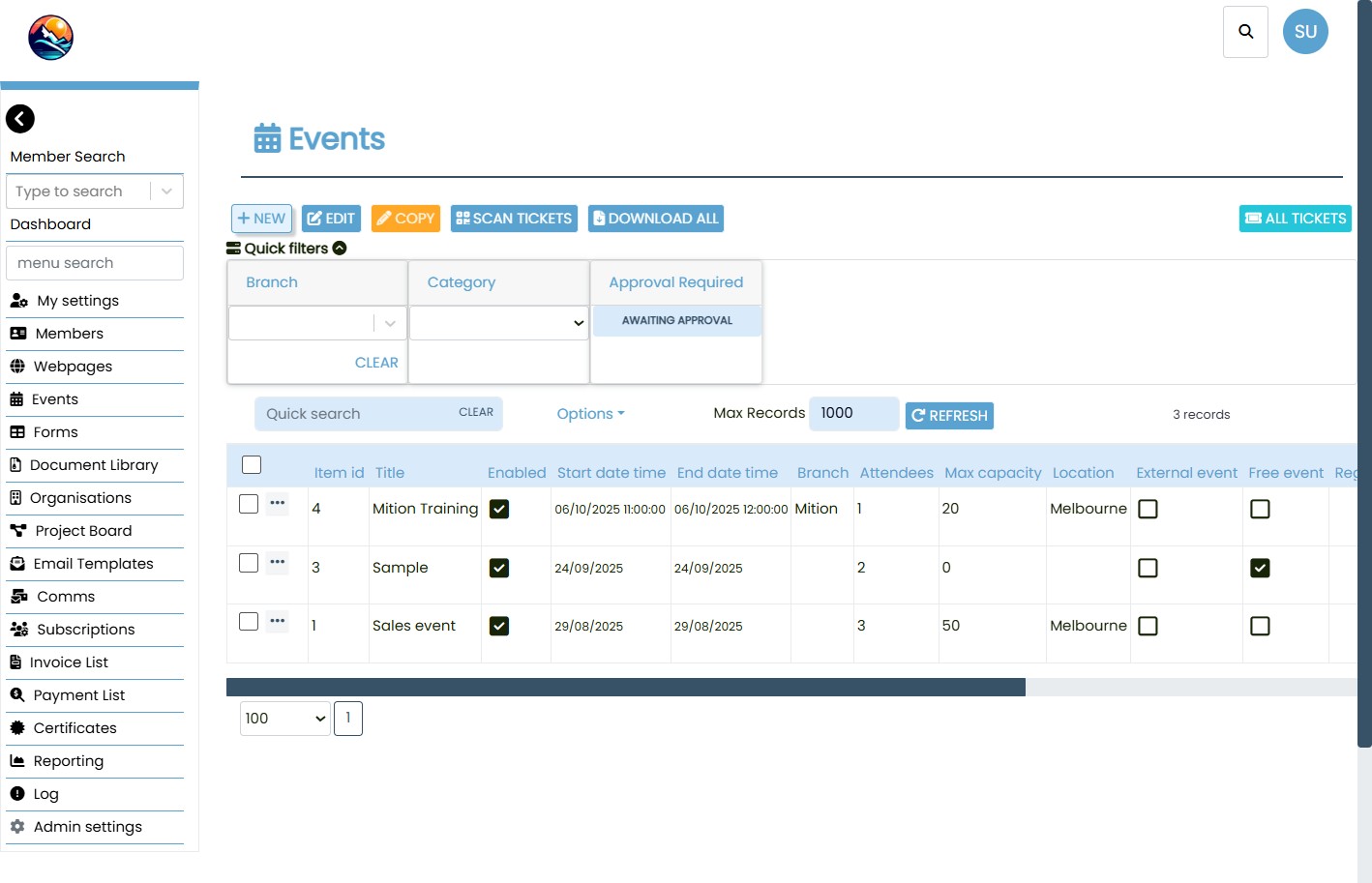
This event occurs when a new Event is being created through the webpage. It sets default fields for the event when a new Event is setup and the user changes categories for the first time.
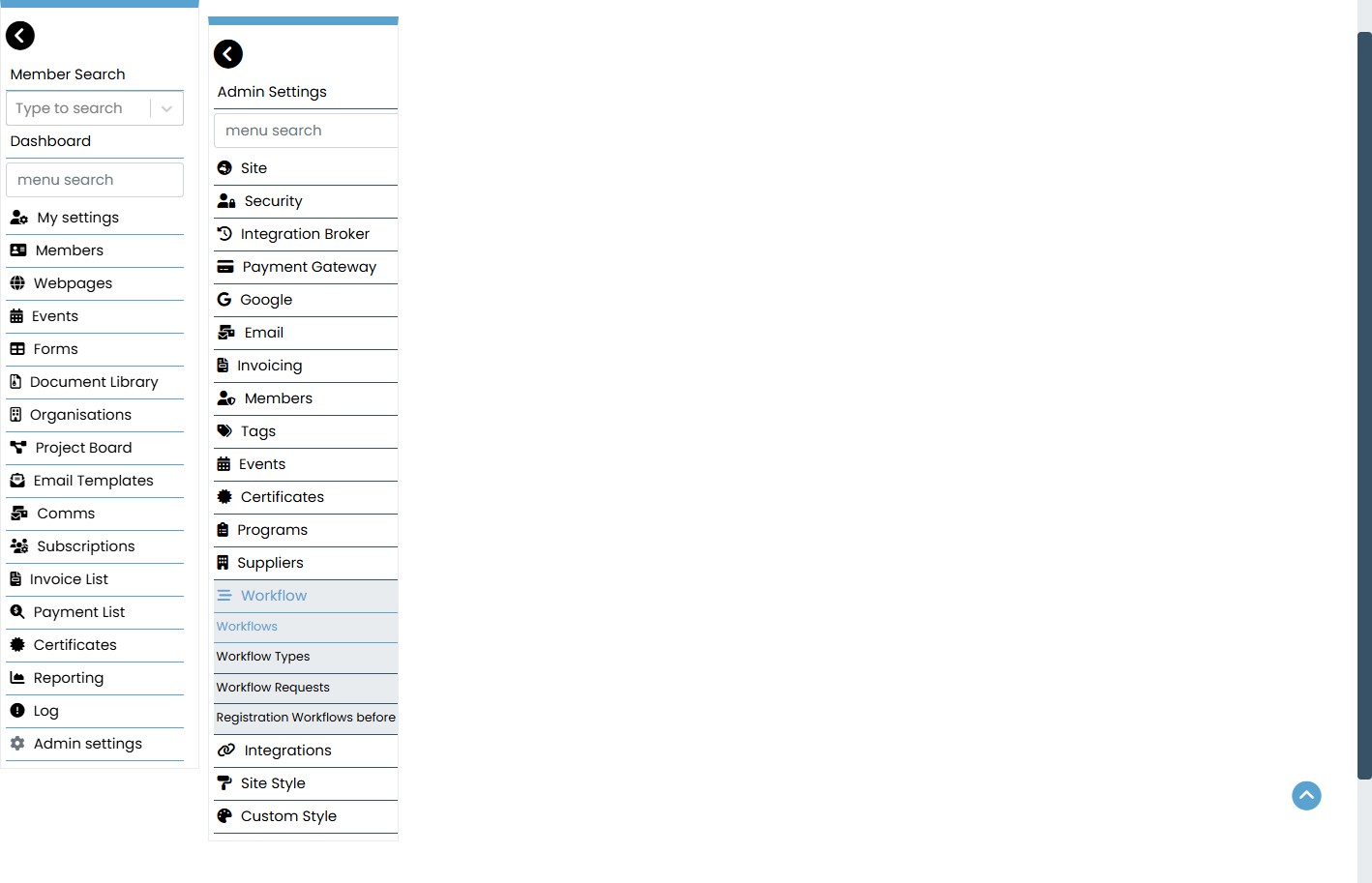
Access Workflow Configuration- Navigate to the EventDefaults workflow setup area in the admin interface.
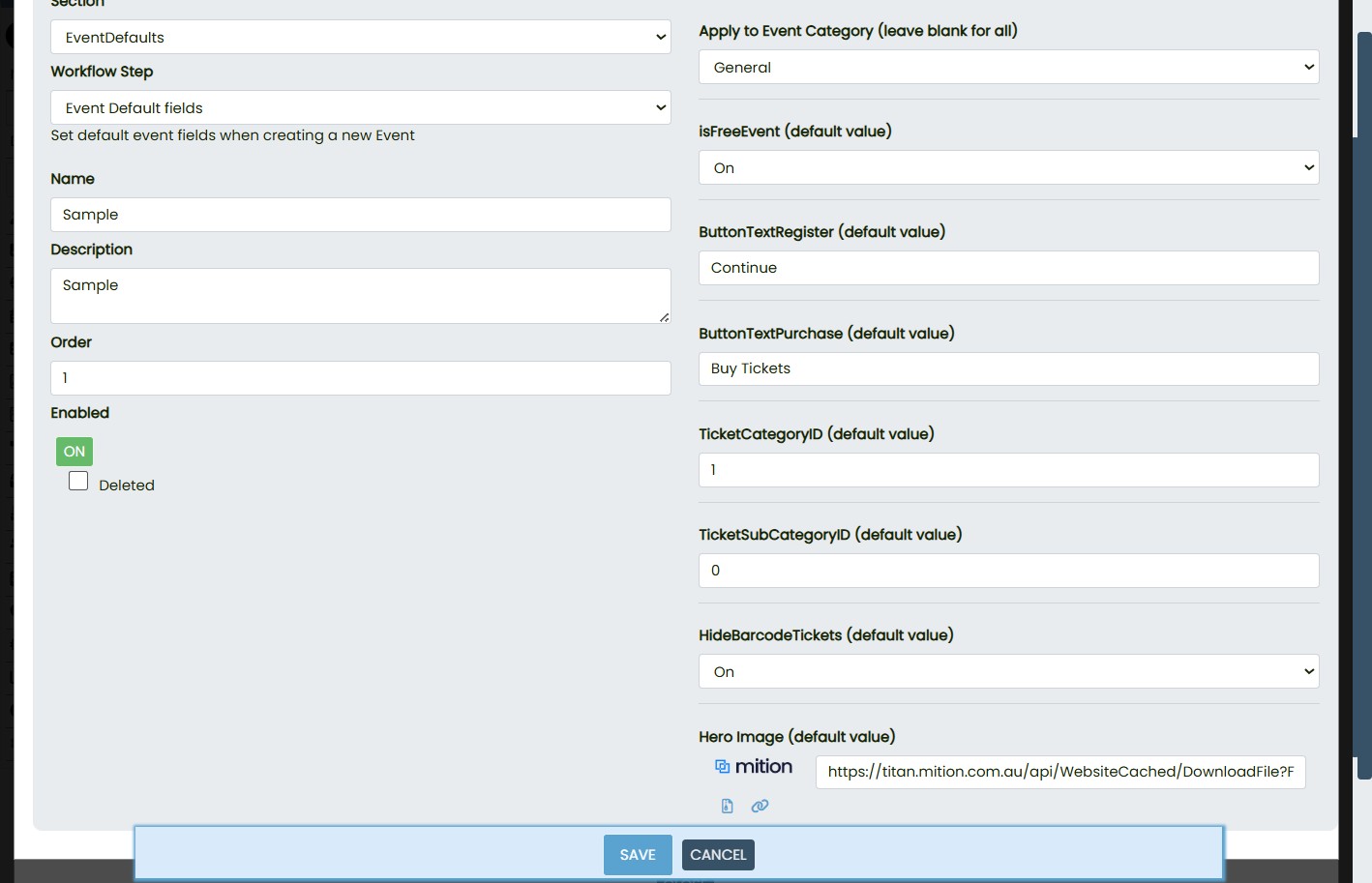
Define Category-Based Defaults- For each event category, configure the desired default values for the supported fields listed above.
Add Hero Image- Upload a Hero image for each category to ensure a consistent visual style across events.
Save and Apply Settings- Ensure all configurations are saved. These defaults will now be applied automatically during event creation.
Supported Fields
The following fields can be configured within the workflow and will be automatically applied to events based on their category:
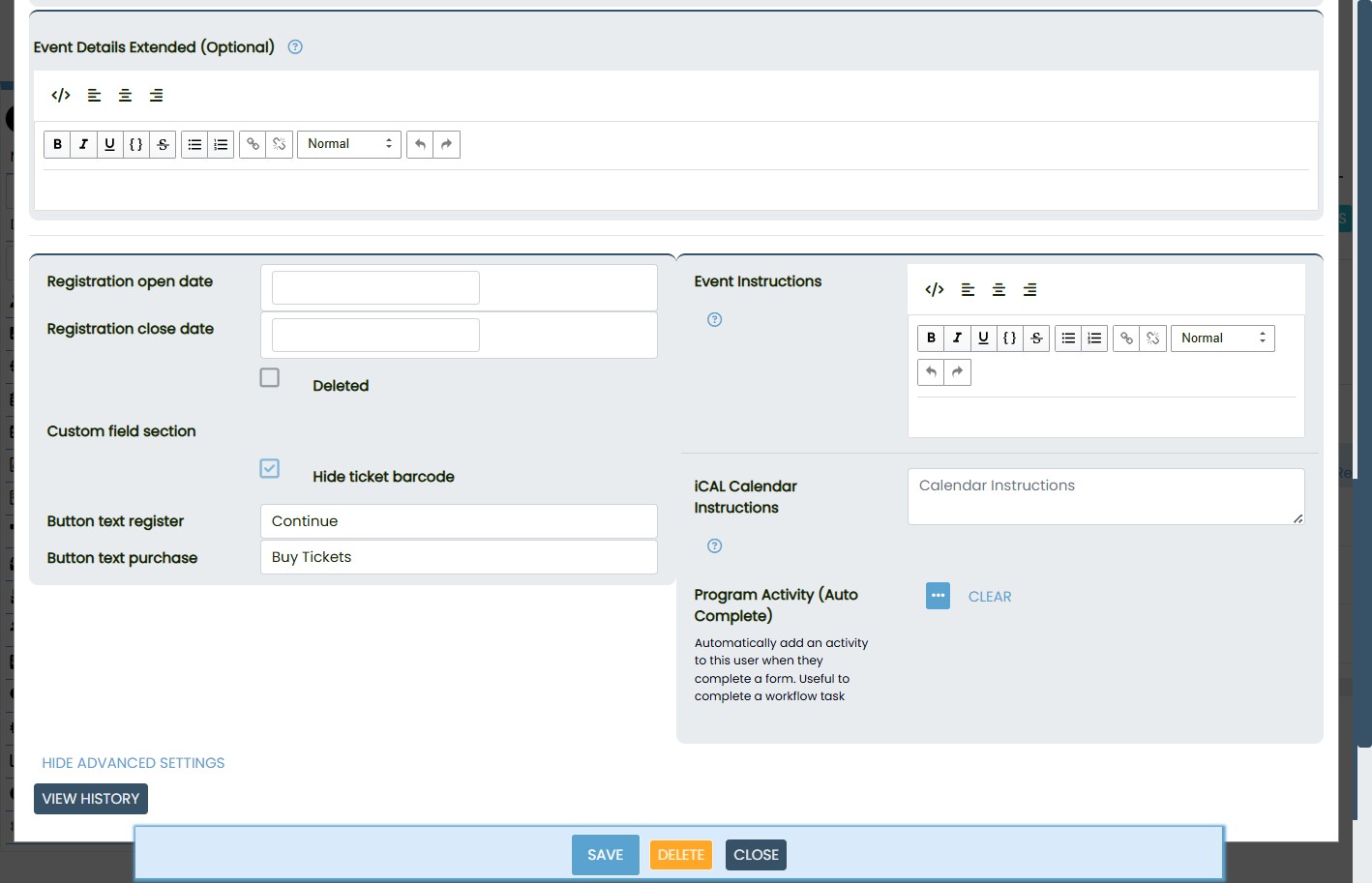
ButtonTextRegister – Label for the registration button
ButtonTextPurchase – Label for the purchase button
TicketCategoryID – Default ticket category
TicketSubCategoryID – Default ticket subcategory
HideBarcodeTickets – Option to hide ticket barcodes
Hero Image – Default banner image for visual consistency
isFreeEvent – Indicates whether the event is free or paid

This webpage was built with Mition